
Guide
How to screenshot a scrolling div or inner panel at full length
Last updated 11 October 2026
To screenshot a scrolling div in full, the element has to be captured at its content height. Full-page tools measure the document, so a panel with its own scrollbar comes out at its on-screen height. You can expand the panel with temporary CSS and use your browser's node screenshot, or use an extension that captures each panel at full length.
Why does a full-page screenshot miss the sidebar or panel?
A full-page screenshot captures the document: the outer page that the main browser scrollbar moves. Dashboards, chat apps, email clients and admin tools often fix the page to the window height and put the content inside one or more elements styled with overflow: auto or overflow: scroll.
For both values, MDN's overflow reference says overflow content is clipped at the element's padding box and the element becomes a scroll container. The hidden rows still exist. The element reports their full height in scrollHeight, but they add nothing to the height of the document.
Firefox's built-in Screenshots tool sizes a full-page capture from the scroll width and height of the content window, according to its source code. On a page whose document is one window tall, the "full page" is the same as the visible area. A panel 460 pixels tall with 100 rows inside it is captured as 460 pixels showing whichever rows were in view.
Can browser developer tools screenshot a single element?
Yes. Firefox and Chrome both save an image of one element, and neither needs an add-on.
- Firefox: in the Inspector's HTML pane, right-click the element and choose Screenshot Node. In the Web Console,
:screenshot --selector "#panel"captures the element that a CSS selector matches. Both are described in Firefox's developer tools documentation, and the file is saved to your downloads folder. - Chrome: in the Elements panel, right-click the node and choose Capture node screenshot, or select it and run the same command from the Command Menu. See Chrome DevTools: view and change the DOM.
Both commands capture the element's box as it is laid out on the page. Firefox reads the node's bounding rectangle (source), and Chrome uses the node's border box (source). Neither documentation page promises to include overflowed content. For a scrolling panel, the box is the visible window onto the content, so the node screenshot shows only the rows currently scrolled into view.
The node screenshot becomes useful once the element's box is as tall as its content, which is what the CSS method below does.
How do I expand a scrolling element with CSS before capturing it?
Removing the height limit lets the element grow to its content height. The node screenshot then captures all of it, including the part below the window, because both browsers render the requested rectangle beyond the viewport.
- Right-click inside the scrolling panel and choose Inspect. Select the element that owns the scrollbar. Hovering nodes highlights them on the page.
- In the Rules (Firefox) or Styles (Chrome) pane, add
height: auto; max-height: none; overflow: visible;to that element. - If the panel is still cut off, select each parent in turn. Remove any fixed height,
100vhheight oroverflow: hiddenuntil the full content shows. - Right-click the element in the inspector and choose Screenshot Node (Firefox) or Capture node screenshot (Chrome).
- Reload the page to discard your changes.
Pitfalls of the CSS method
- Layout shifts. An expanded panel pushes everything below it down, and grid or flex layouts may stretch neighbouring columns to match.
- Sticky elements move. A sticky element sticks to its nearest scrolling ancestor. Once that ancestor stops scrolling, table headers and section titles return to their normal place.
- Virtualised lists stay short. Some web apps only render the rows near the visible area. Expanding the container reveals empty space or a partial list.
- One panel at a time. Two side-by-side panels need the steps repeated for each, and the screenshots show each panel without the page around it.
How do I capture every scrolling panel and the page in one image?
Screenshot Crawler is an extension for Firefox 142 or later, with a Chrome test build. It finds the scrolling panels on a page automatically and captures each one at full length in one pass, without changing the page's CSS. Sticky and fixed headers are captured once. Every capture mode is included in the Free tier, and captures are processed on your device.
- Click the Screenshot Crawler icon in the toolbar, then the arrow beside the large button to see every capture type.
- Choose Page + all panels for one image of the whole page with each scrolling area expanded inside it.
- Or choose One panel, point at a scrolling area and click it or press Enter. ↑ moves the selection out to the surrounding area.
- Or choose Panels only, tick the panels you want and choose Capture selected to save each as a separate image.
- Save the result from the editor as PNG or PDF.
Which method should I use?
| Method | Captures hidden overflow | Page around the panel | Setup |
|---|---|---|---|
| Full-page screenshot (Firefox Screenshots, Chrome full size) | No. The panel appears at its on-screen height. | Yes | None |
Node screenshot (Firefox Screenshot Node or :screenshot --selector, Chrome Capture node screenshot) | No. It captures the element's box. | No | Developer tools |
| CSS expansion plus node screenshot | Yes, unless the list is virtualised | No | CSS edits for each panel and its parents |
| Screenshot Crawler, Page + all panels | Yes, every detected panel | Yes | Install the extension |
| Screenshot Crawler, One panel or Panels only | Yes | No | Install the extension |
For a single panel you capture once, the free developer-tools route works. For pages with several panels, or captures you repeat, an extension saves the CSS work.
Try it
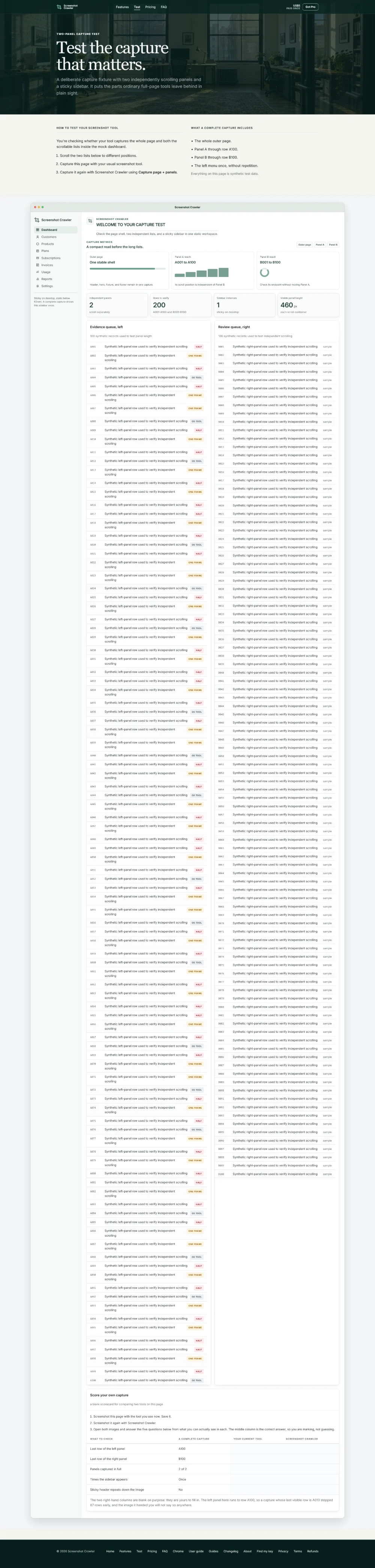
The two-panel test page has two independently scrolling lists, rows A001 to A100 and B001 to B100, and a sticky sidebar. Scroll the lists to different positions, then capture the page with any tool and check whether rows A100 and B100 appear. Screenshot Crawler is free on Firefox Add-ons, and a Chrome test build is available while the Chrome Web Store review is under way.